Daily Hisab

How to use Daily Hisabদৈনিক হিসাব কীভাবে ব্যবহার করবেন

A quick tour of every feature — from your first entry to reminders and Google Drive backup.প্রথম হিসাব যোগ করা থেকে Google Drive এ ব্যাকআপ — সব ফিচারের ছোট গাইড।

01

🏠 Homeহোম

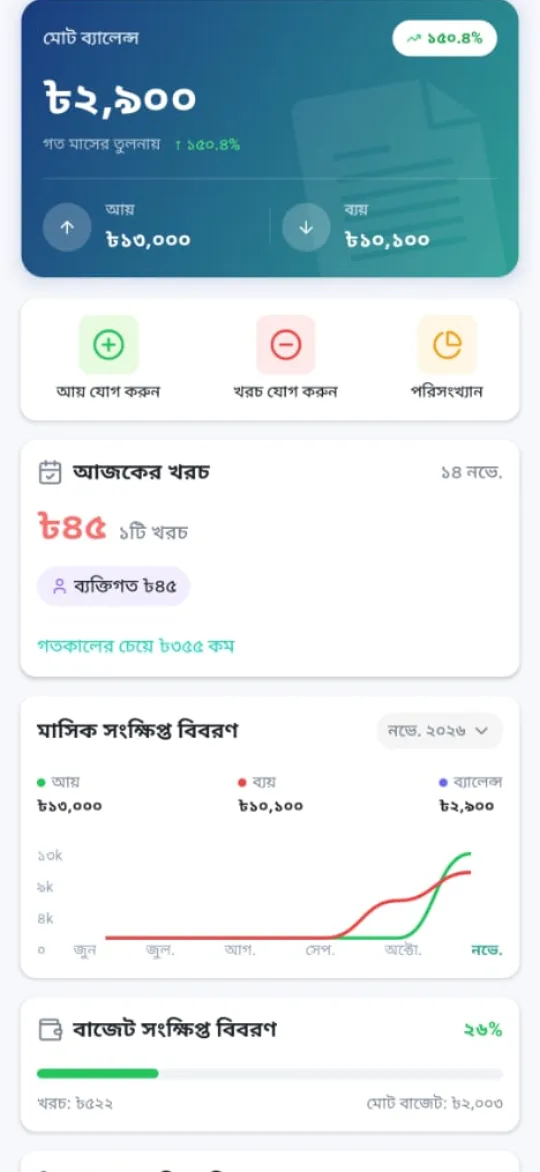
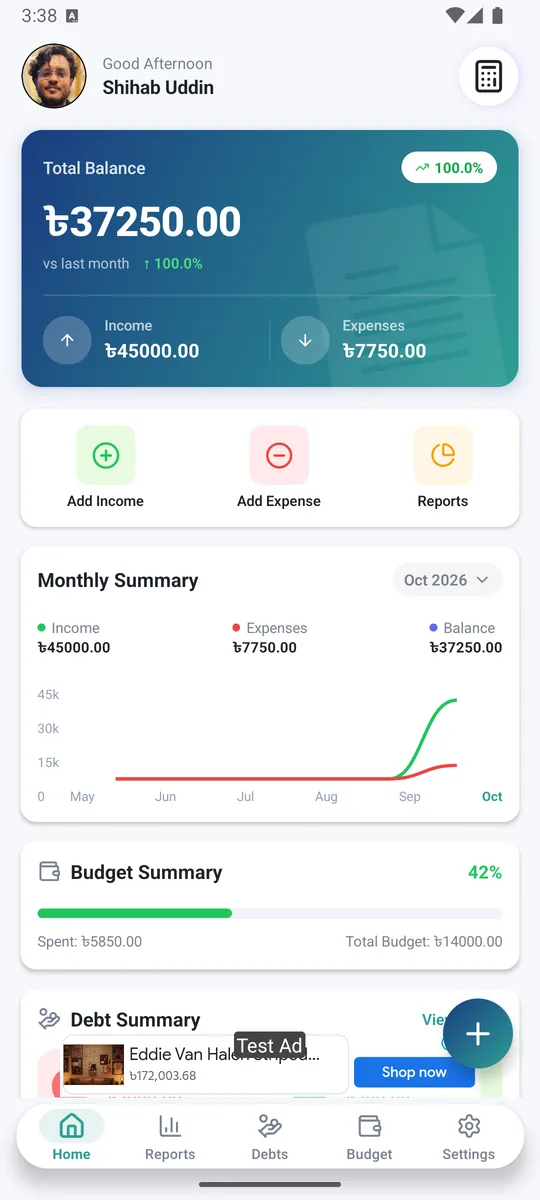
Your money at a glance. The top card shows your total balance with this month's income and expenses.এক নজরে আপনার টাকার হিসাব। উপরের কার্ডে মোট ব্যালেন্স আর এই মাসের আয়-খরচ দেখায়।

  1. Tap Add Income or Add Expense to record money in a few seconds.Add Income বা Add Expense চেপে কয়েক সেকেন্ডে হিসাব যোগ করুন।
  2. The balance card also shows how this month compares with last month.ব্যালেন্স কার্ডে দেখুন গত মাসের তুলনায় এ মাস কেমন যাচ্ছে।
  3. Today's spending shows what you've spent today, by category, and how that compares with yesterday.আজকের খরচ কার্ডে দেখুন আজ কত খরচ হলো, কোন খাতে, আর গতকালের চেয়ে বেশি না কম।
  4. Monthly Summary compares income and expenses month by month. Pick a month to see its numbers.মাসিক সারসংক্ষেপ এ মাস অনুযায়ী আয়-খরচের তুলনা দেখুন। মাস বেছে সেই মাসের হিসাব দেখা যায়।
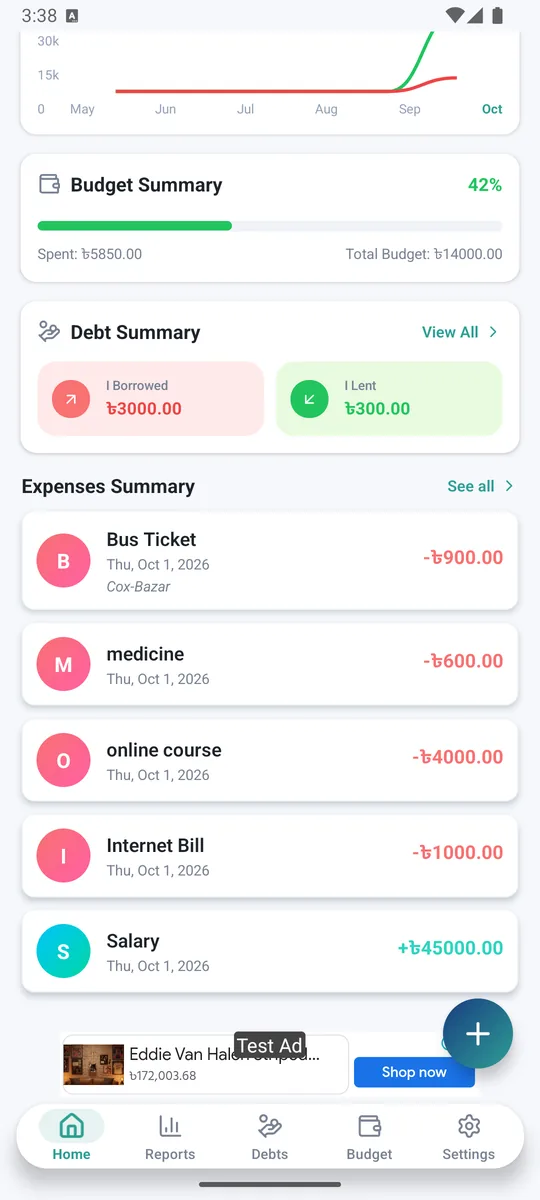
  5. Scroll down for your budget, debt summary and latest transactions.নিচে স্ক্রল করলে বাজেট, ধার-দেনা আর সাম্প্রতিক লেনদেন পাবেন।
  6. In December and January a Year in review banner appears (see section 12).ডিসেম্বর আর জানুয়ারিতে বছরের হিসাব ব্যানার আসে (সেকশন ১২ দেখুন)।
HomeHome
Home
02

➕ Add income or expenseআয় বা খরচ যোগ করা

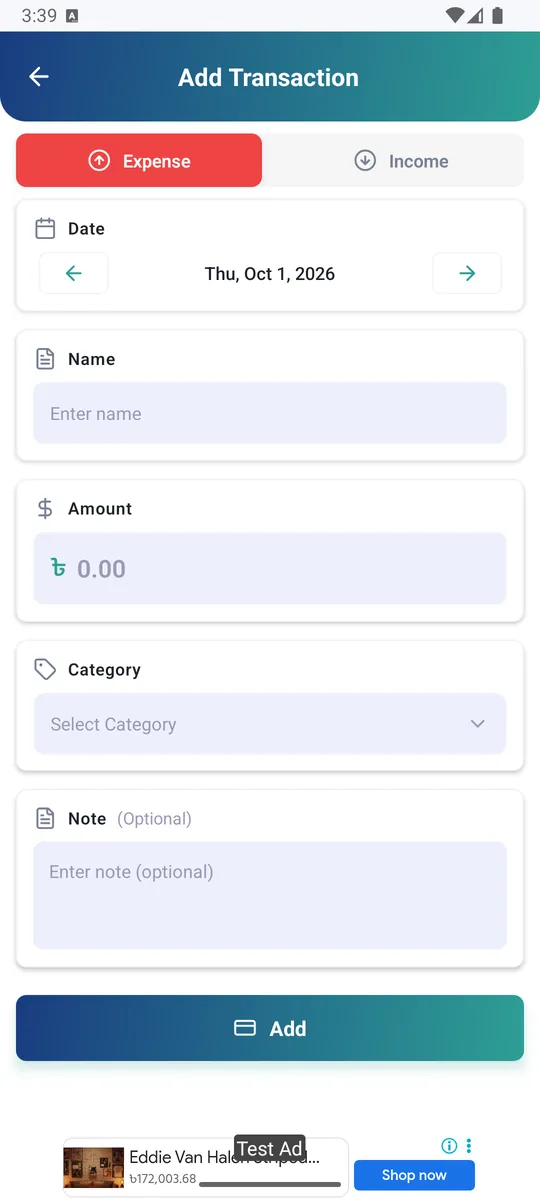
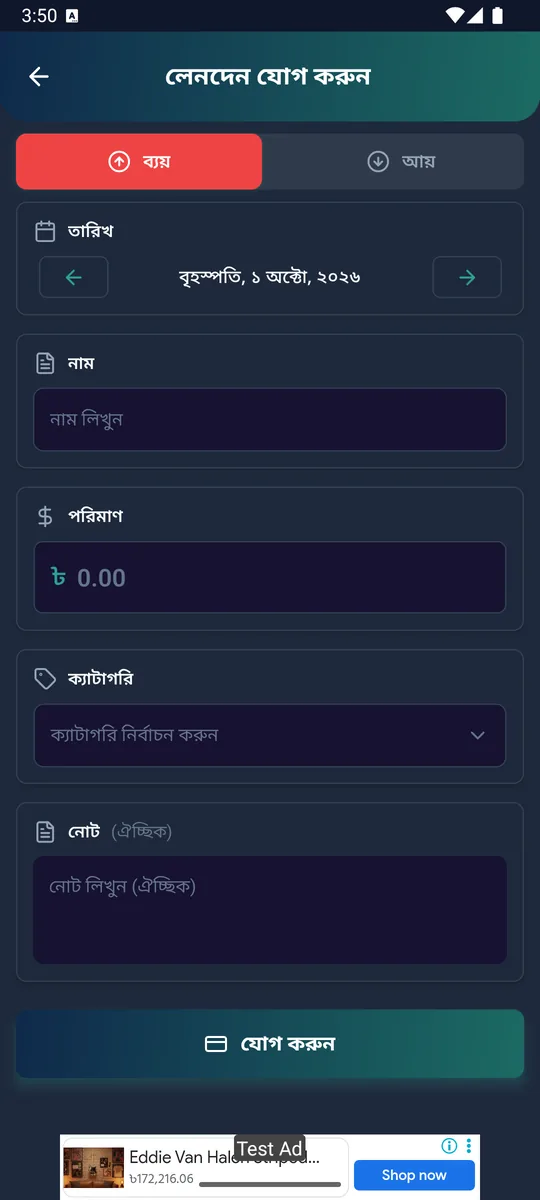
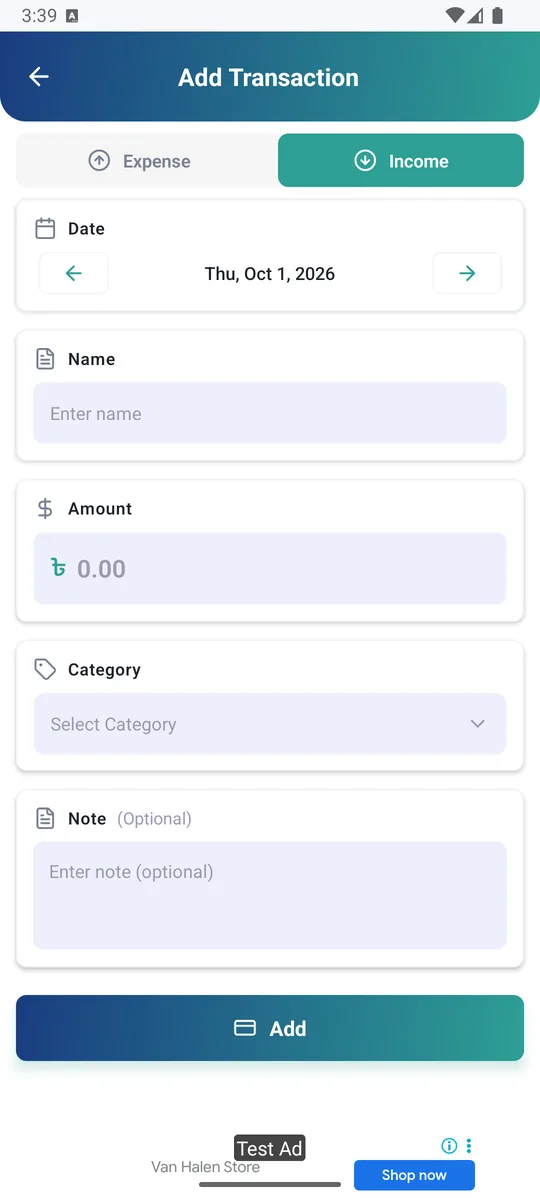
Every entry takes just an amount, a name and a category.প্রতিটা হিসাবে লাগে শুধু টাকার পরিমাণ, নাম আর ক্যাটাগরি।

  1. Choose Expense or Income at the top.উপরে খরচ বা আয় বেছে নিন।
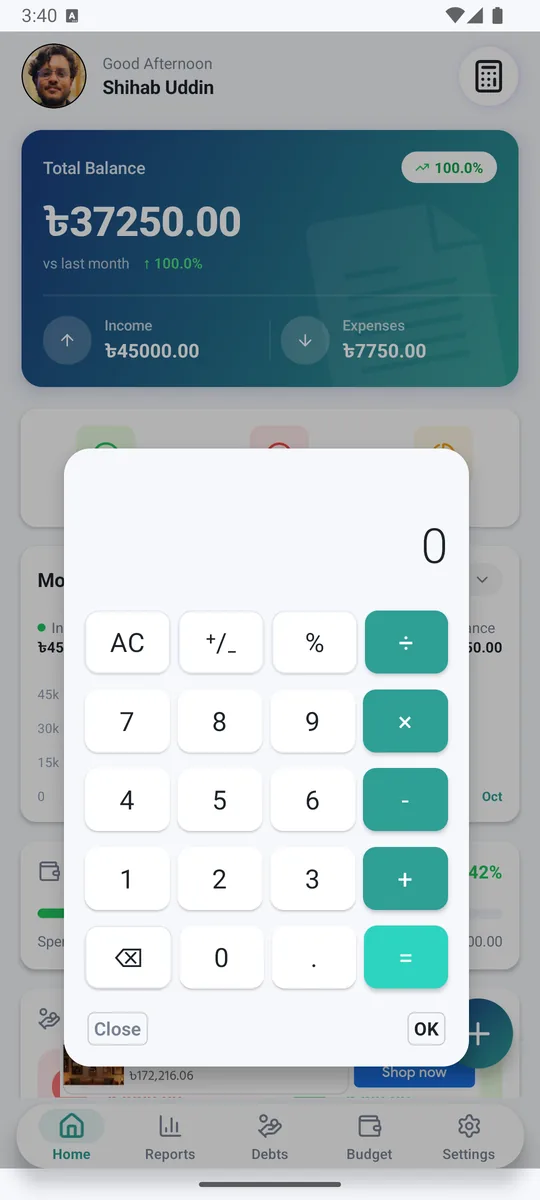
  2. Enter the amount. Tap the calculator button next to it if you need to add things up, then tap Use.টাকার পরিমাণ লিখুন। হিসাব কষতে হলে পাশের ক্যালকুলেটর বাটনে চাপুন, তারপর Use চাপুন।
  3. Type a name like Lunch or Salary, or tap a name from Used before to skip typing.খাবার বা বেতনের মতো নাম লিখুন, অথবা আগে ব্যবহার করা নাম থেকে এক চাপে বসিয়ে নিন।
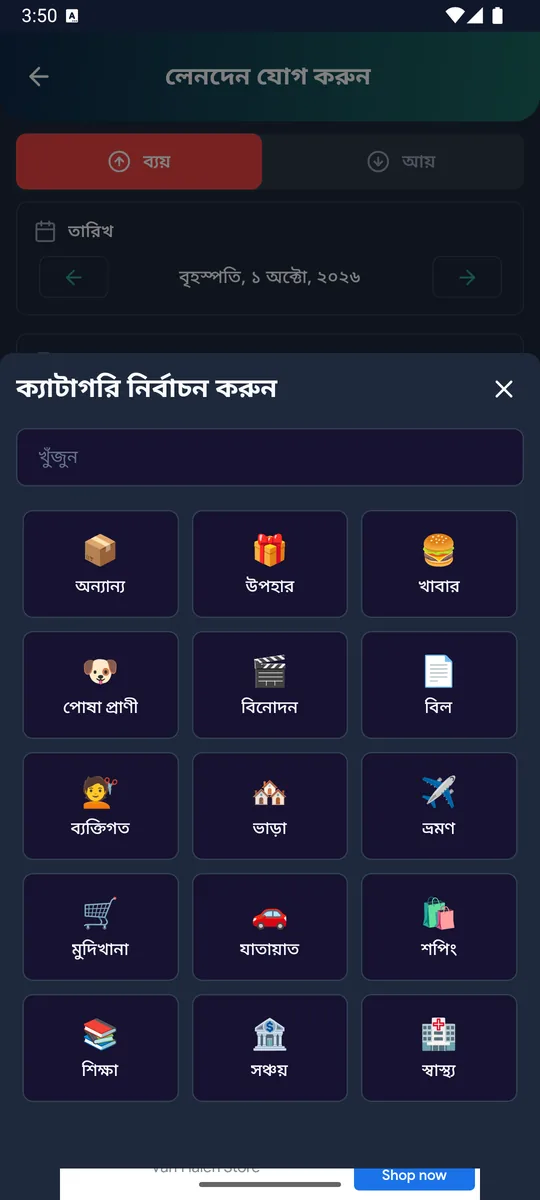
  4. Pick today, yesterday or another date, then choose a category like Food, Rent or Salary. Tap New to make your own (see section 11).আজ, গতকাল বা অন্য তারিখ বেছে ক্যাটাগরি নিন, যেমন খাবার, ভাড়া বা বেতন। নিজের ক্যাটাগরি বানাতে New চাপুন (সেকশন ১১ দেখুন)।
  5. Add an optional note, check the summary line, and tap the green button to save.চাইলে নোট লিখুন, সারসংক্ষেপ লাইনটা দেখে নিয়ে সবুজ বাটনে চেপে সেভ করুন।
Add income or expenseAdd income or expense
Add income or expense
Add income or expenseAdd income or expense
Calculator
03

📋 All transactionsসব লেনদেন

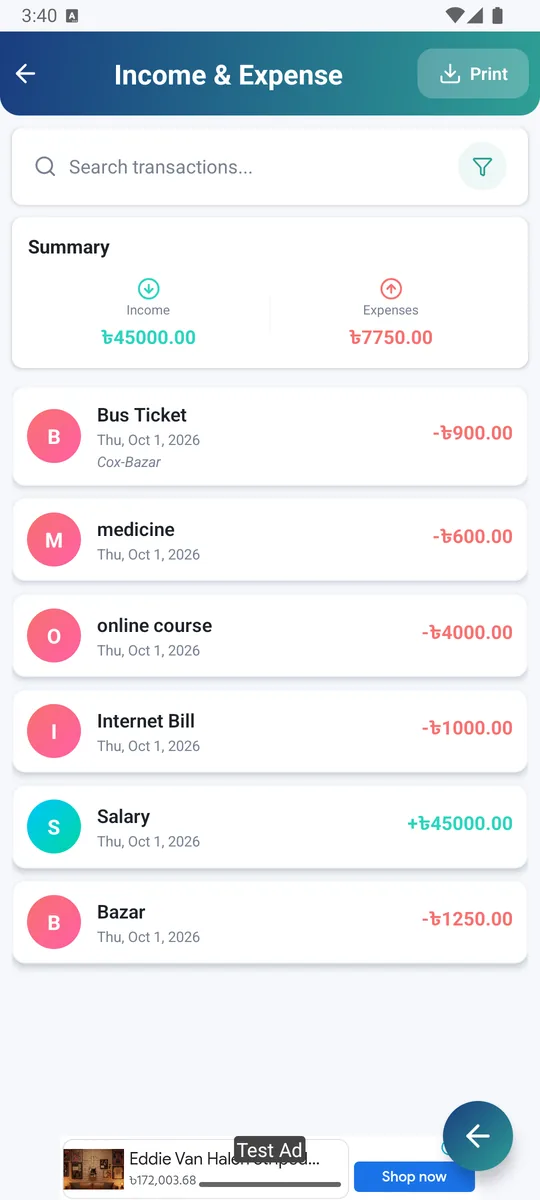
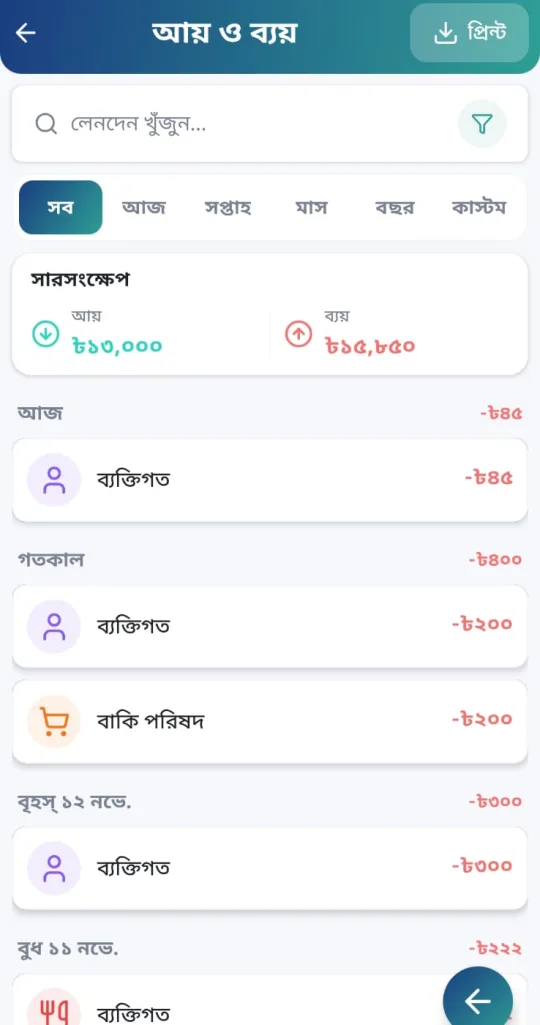
See every entry in one list, search by name, and filter by month, type or category.সব হিসাব এক তালিকায়। নাম দিয়ে খুঁজুন, মাস, ধরন বা ক্যাটাগরি দিয়ে ফিল্টার করুন।

  1. Tap the search box to find an entry quickly.দ্রুত খুঁজতে সার্চ বক্সে লিখুন।
  2. Use the tabs at the top to see All, Today, This Week, This Month, This Year or a Custom date range.উপরের ট্যাবে সব, আজ, সপ্তাহ, মাস, বছর বা কাস্টম তারিখ বেছে নিন।
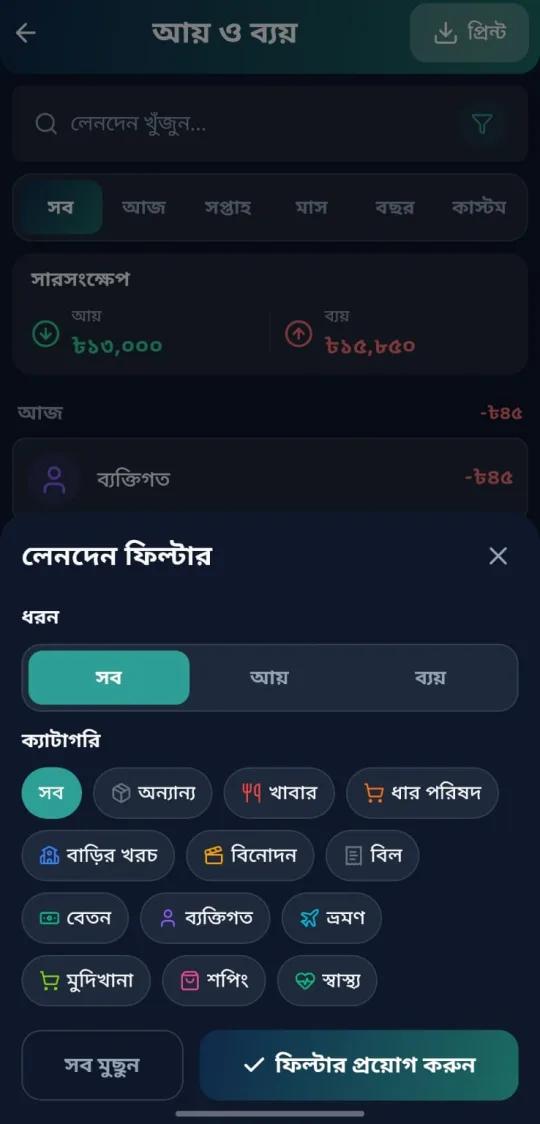
  3. Tap the filter button to choose Income or Expense and a category. Tap Clear Filters to reset.ফিল্টার বাটনে আয় বা খরচ আর ক্যাটাগরি বেছে নিন। সব সরাতে Clear Filters চাপুন।
  4. The summary at the top shows total income and expenses for what you see.উপরের সারসংক্ষেপে এই তালিকার মোট আয় আর মোট খরচ দেখায়।
  5. Tap an entry to edit it, or long-press to delete.এডিট করতে লেনদেনে চাপুন, মুছতে চেপে ধরে রাখুন।
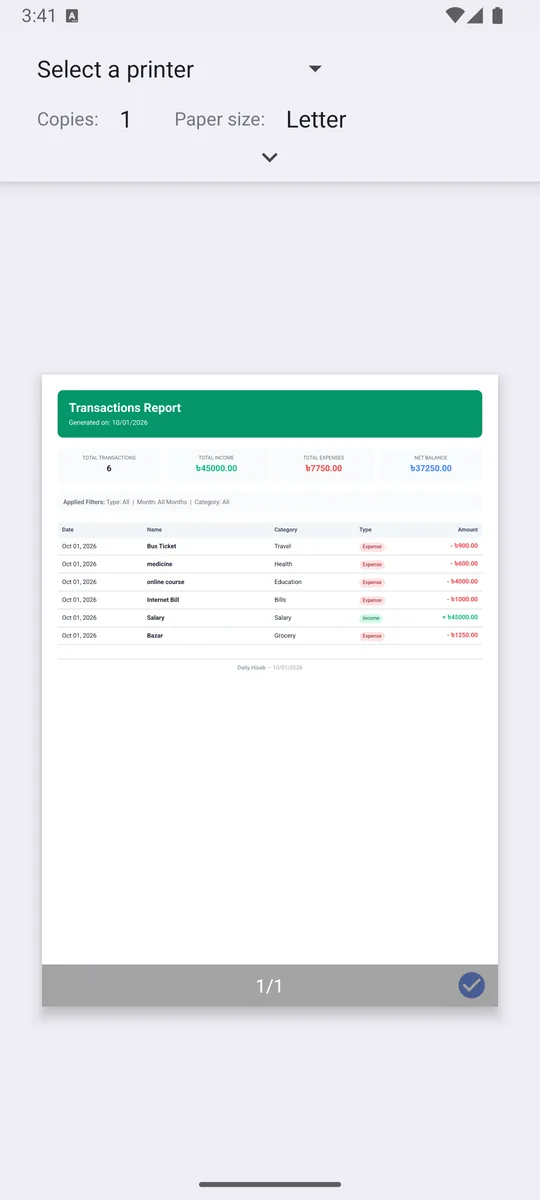
  6. Tap Print to save or share your transactions as a PDF report.Print চেপে লেনদেনের PDF রিপোর্ট সেভ বা শেয়ার করুন।
All transactionsAll transactions
FilterFilter
All transactions
04

📊 Reportsরিপোর্ট

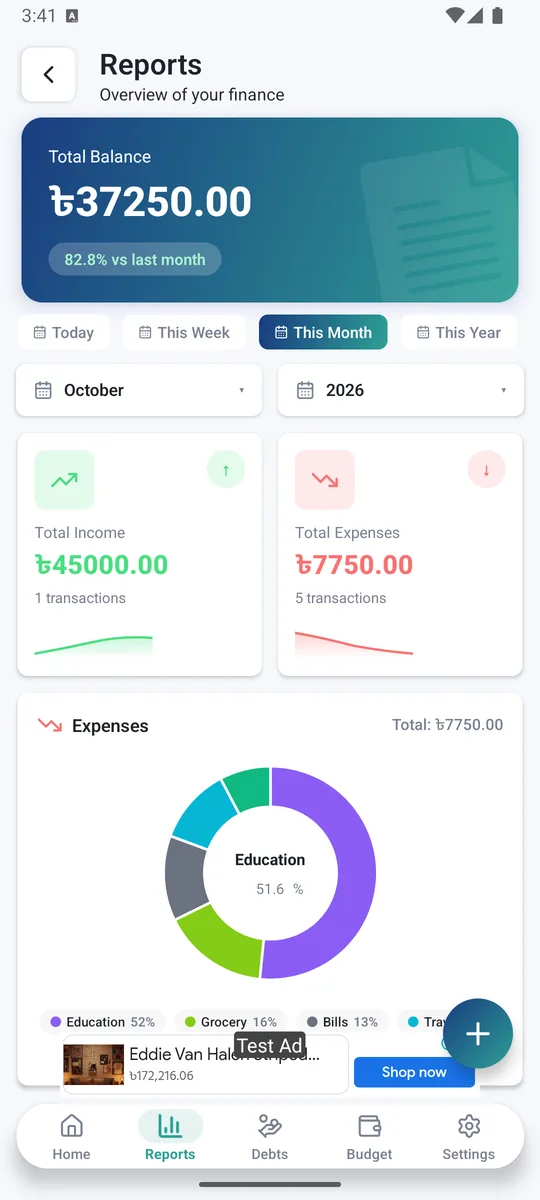
Understand where your money goes.টাকা কোথায় যাচ্ছে বুঝে নিন।

  1. Switch between Today, This Week, This Month and This Year, or choose Custom to pick your own From and To dates.আজ, এই সপ্তাহ, এই মাস, এই বছর বেছে নিন, অথবা Custom চেপে নিজের পছন্দের শুরু ও শেষ তারিখ দিন।
  2. The cards show total income, total expenses and your savings rate.কার্ডে মোট আয়, মোট খরচ আর সঞ্চয়ের হার দেখায়।
  3. The pie chart shows spending by category.পাই চার্টে ক্যাটাগরি অনুযায়ী খরচ দেখায়।
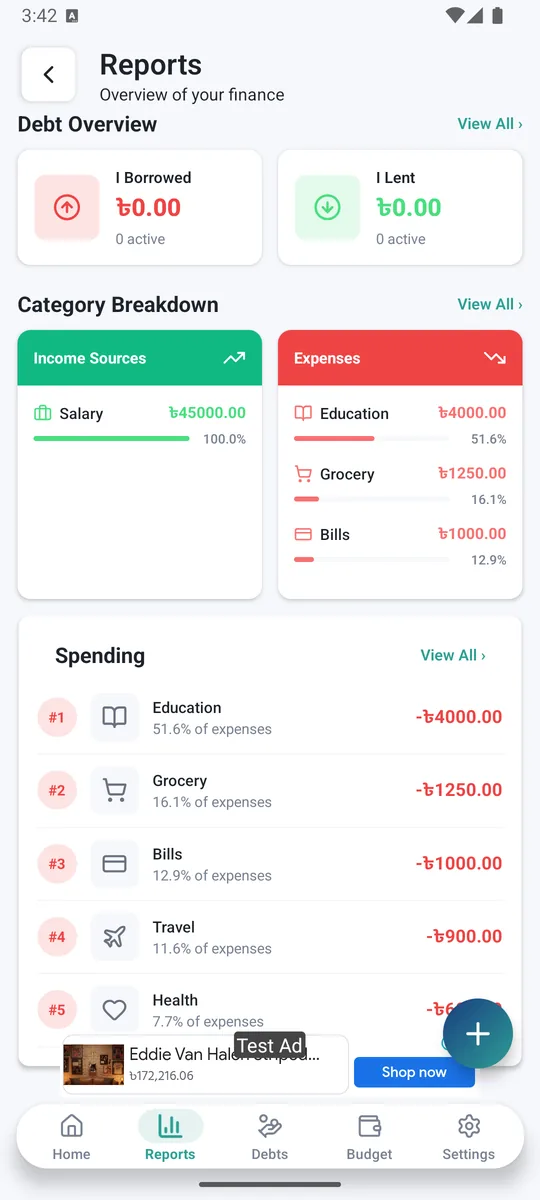
  4. Scroll down for Smart insights (section 10), your top spending and debt overview.নিচে স্ক্রল করলে স্মার্ট ইনসাইট (সেকশন ১০), সবচেয়ে বেশি খরচের খাত আর ধার-দেনার হিসাব পাবেন।
ReportsReports
Reports
05

🎯 Budgetsবাজেট

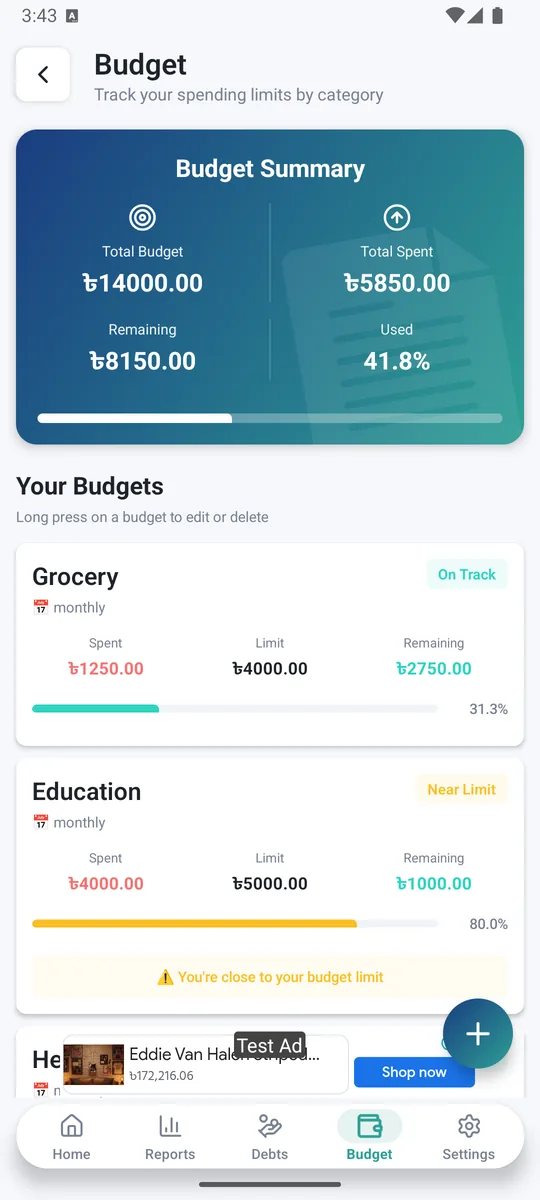
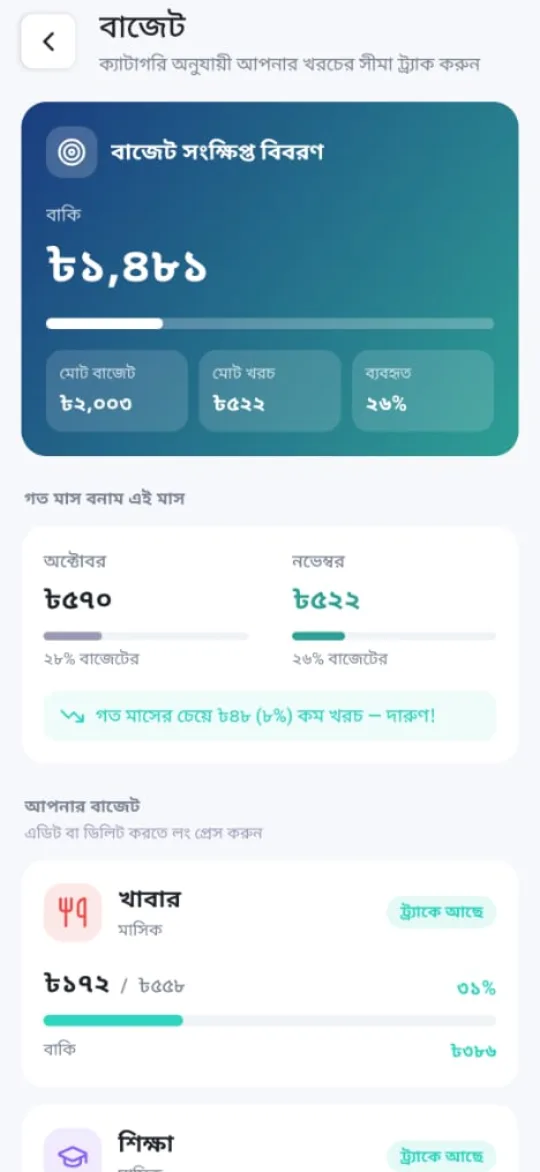
Set a spending limit for each category and stay on track.প্রতিটা খাতের জন্য খরচের সীমা ঠিক করুন।

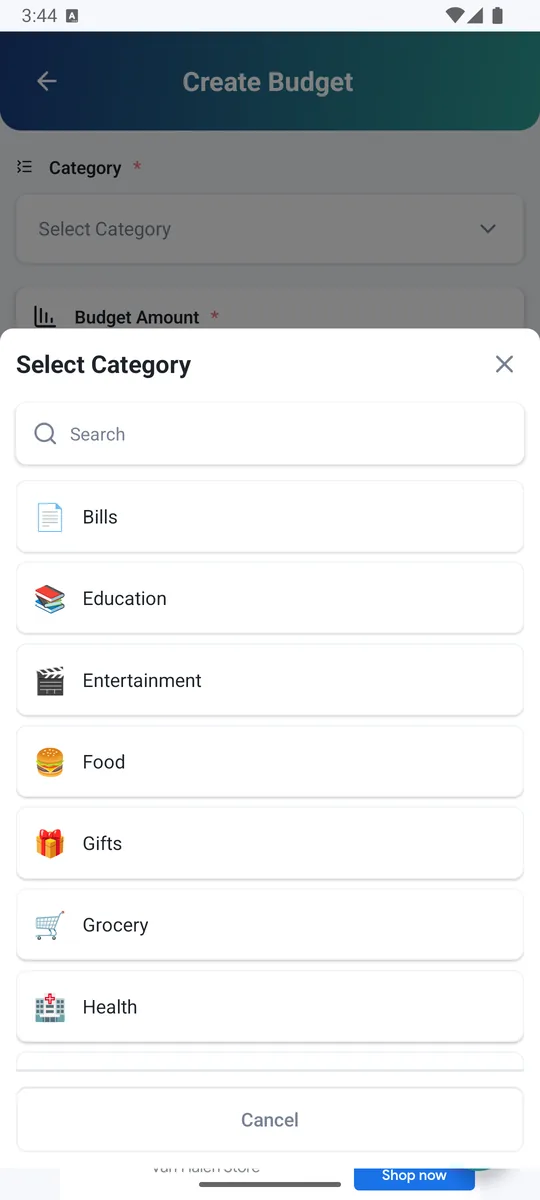
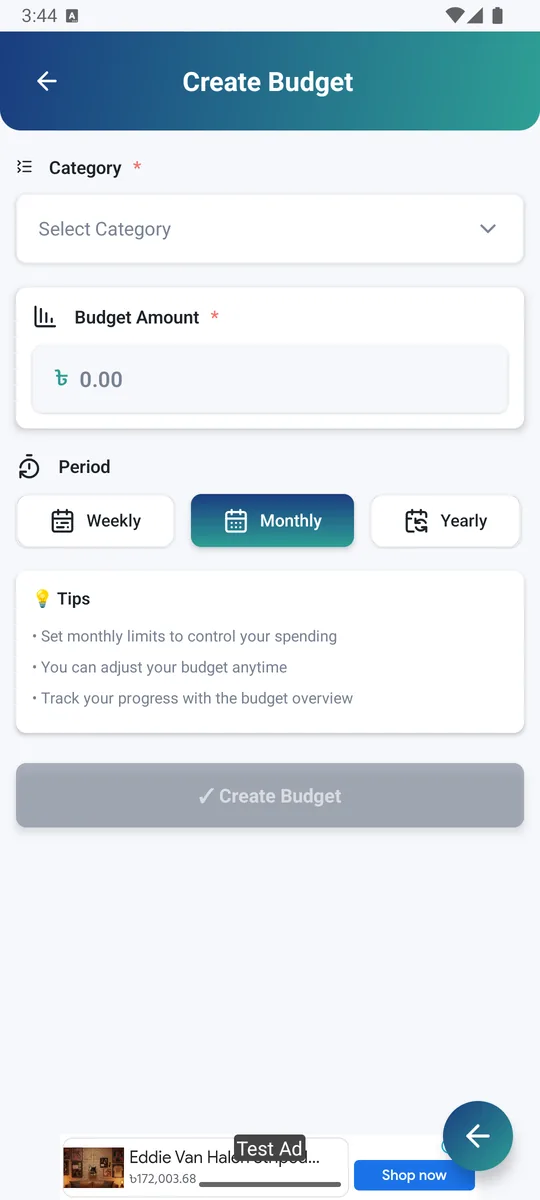
  1. Tap + on the Budget page and choose a category.বাজেট পেজে + চেপে ক্যাটাগরি বাছুন।
  2. Enter the limit and choose Weekly, Monthly or Yearly.সীমা লিখুন আর সাপ্তাহিক, মাসিক বা বার্ষিক বাছুন।
  3. Each budget shows spent, limit and what's left, with a status: On Track, Near Limit or Over Budget.প্রতিটা বাজেটে খরচ, সীমা আর বাকি দেখায়, সাথে অবস্থা: On Track, Near Limit বা Over Budget।
  4. A comparison card shows how this month's spending stands against last month.একটা তুলনা কার্ডে দেখুন এ মাসের খরচ গত মাসের চেয়ে বেশি না কম।
  5. You also get a notification at 80% and 100% of a limit (see section 9).সীমার ৮০% আর ১০০% এ নোটিফিকেশনও পাবেন (সেকশন ৯ দেখুন)।
  6. Long-press a budget to edit or delete it.এডিট বা মুছতে বাজেট চেপে ধরে রাখুন।
BudgetsBudgets
Budgets
06

🤝 Debtsধার-দেনা

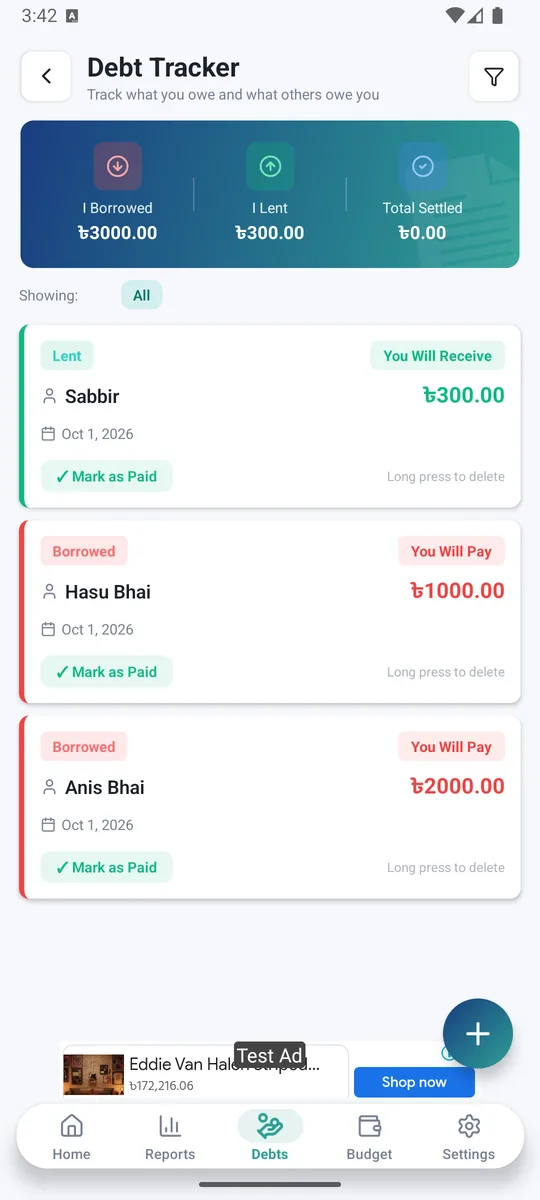
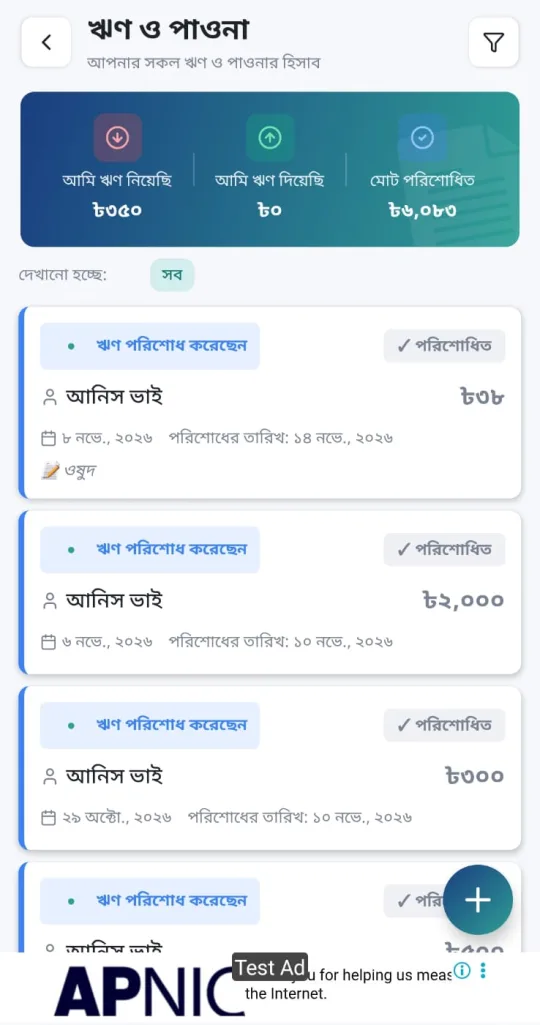
Remember who you lent money to and who you owe.কাকে টাকা ধার দিলেন আর কার কাছে ঋণ — সব মনে রাখুন।

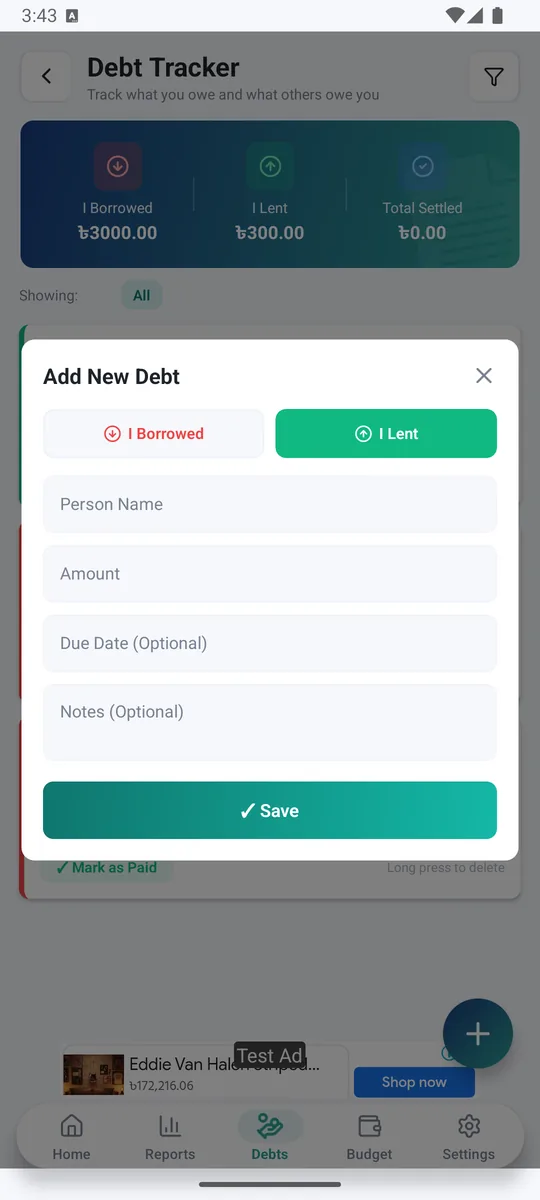
  1. Tap + and choose I Borrowed or I Lent.+ চেপে ধার নিয়েছি বা ধার দিয়েছি বাছুন।
  2. Add the person's name, the amount and the date. Set a pay-back date if you want a reminder, and add a note if you like.নাম, টাকা আর তারিখ দিন। রিমাইন্ডার চাইলে ফেরতের তারিখ দিন, চাইলে নোট লিখুন।
  3. Not paid in one go? Tap Add payment and enter what was paid now. The remaining amount and payment history stay on the card.একবারে পুরো টাকা না হলে Add payment চেপে এখন যত দিলেন বা পেলেন লিখুন। বাকি টাকা আর পেমেন্টের ইতিহাস কার্ডেই থাকবে।
  4. Tap Mark as Paid when it's fully settled. Made a mistake? Choose Mark as Unpaid.পুরো পরিশোধ হলে Mark as Paid চাপুন। ভুল হলে Mark as Unpaid দিয়ে ফেরান।
  5. Filter by Active, Settled or All. Long-press a debt to edit or delete it.Active, Settled বা All ফিল্টারে দেখুন। এডিট বা মুছতে চেপে ধরে রাখুন।
  6. On the pay-back date you get a reminder at 10 AM (see section 9).ফেরতের তারিখে সকাল ১০টায় রিমাইন্ডার আসবে (সেকশন ৯ দেখুন)।
Debts
DebtsDebts
Partial payment
07

☁️ Backup & restoreব্যাকআপ ও রিস্টোর

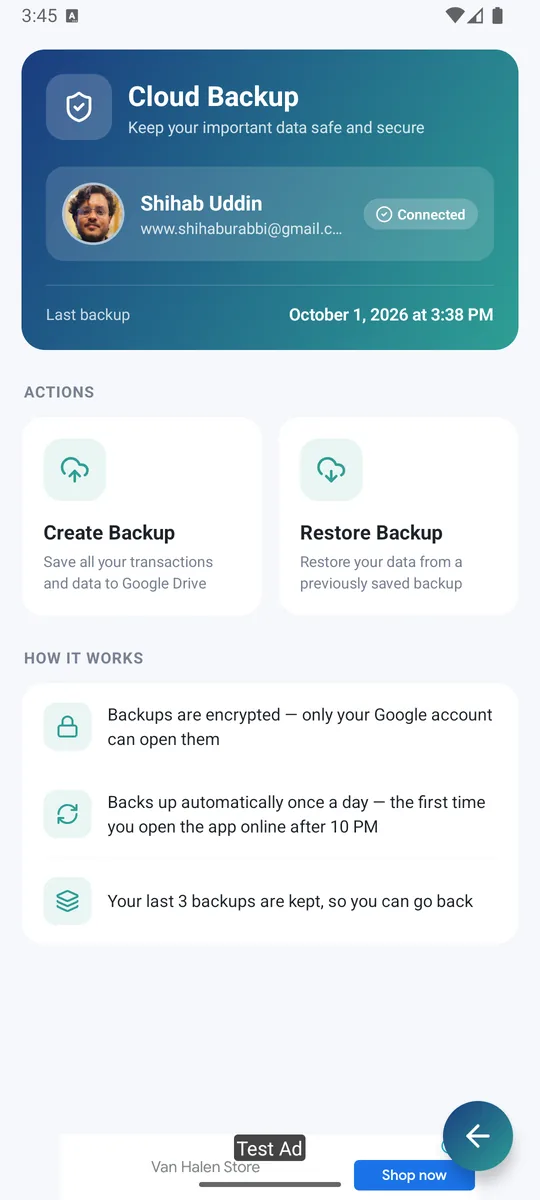
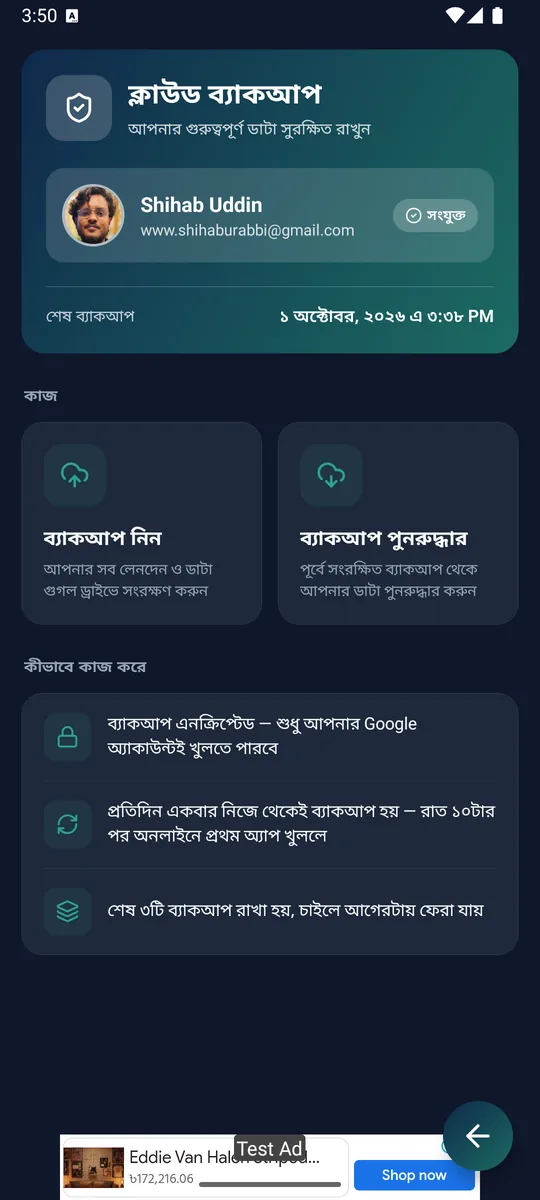
Keep a safe copy of your records in your own Google Drive.আপনার নিজের Google Drive এ হিসাবের নিরাপদ কপি রাখুন।

  1. Open Settings → Backup & Restore and connect your Gmail.সেটিংস → ব্যাকআপ ও রিস্টোর এ গিয়ে Gmail যুক্ত করুন।
  2. Backups are encrypted — only your Google account can open them.ব্যাকআপ এনক্রিপ্টেড — শুধু আপনার Google অ্যাকাউন্টই খুলতে পারবে।
  3. A backup runs automatically once a day, the first time you open the app online after 10 PM. Your last 3 backups are kept.রাত ১০টার পর অনলাইনে প্রথম অ্যাপ খুললে দিনে একবার নিজে থেকেই ব্যাকআপ হয়। শেষ ৩টি ব্যাকআপ রাখা হয়।
  4. New phone? Connect the same Gmail and tap Restore Backup. Choose Merge to keep the data on this phone and add the backup, or Replace to keep only the backup.নতুন ফোন? একই Gmail যুক্ত করে Restore Backup চাপুন। ফোনের ডাটা রেখে ব্যাকআপ যোগ করতে Merge, শুধু ব্যাকআপ রাখতে Replace বাছুন।
  5. Just installed the app? If Drive already has a backup, restore it first so your old data isn't overwritten.এইমাত্র অ্যাপ ইনস্টল করেছেন? Drive এ আগের ব্যাকআপ থাকলে আগে সেটা রিস্টোর করুন, না হলে পুরনো ডাটা ঢাকা পড়তে পারে।
  6. If your Google session expires, tap Sign in again.Google সেশন শেষ হলে Sign in again চেপে আবার লগইন করুন।
Backup and restoreBackup and restore
08

⚙️ Settingsসেটিংস

Make the app yours.অ্যাপটা নিজের মতো সাজিয়ে নিন।

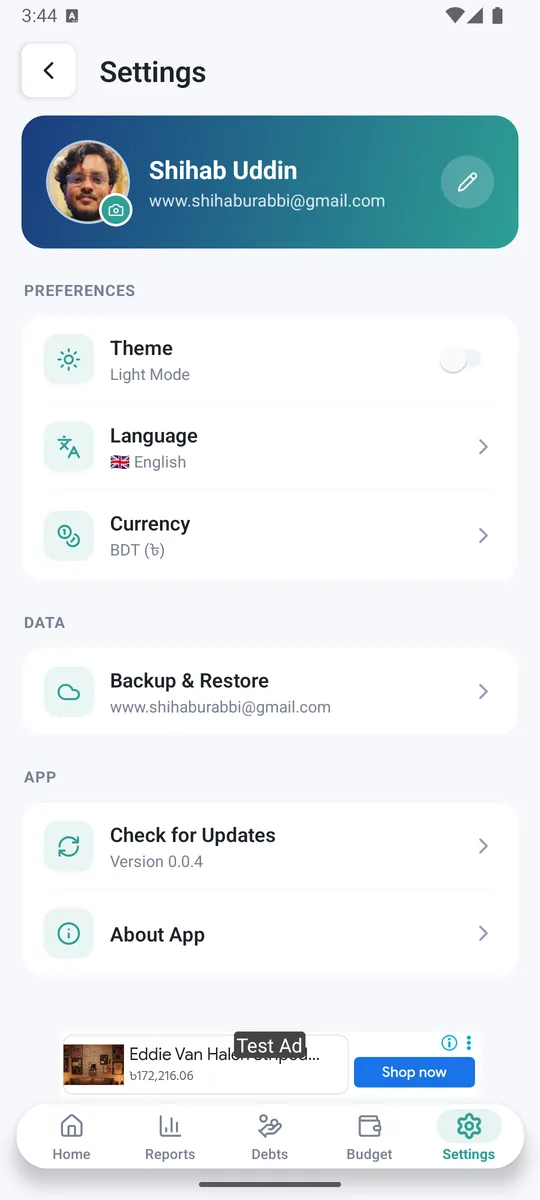
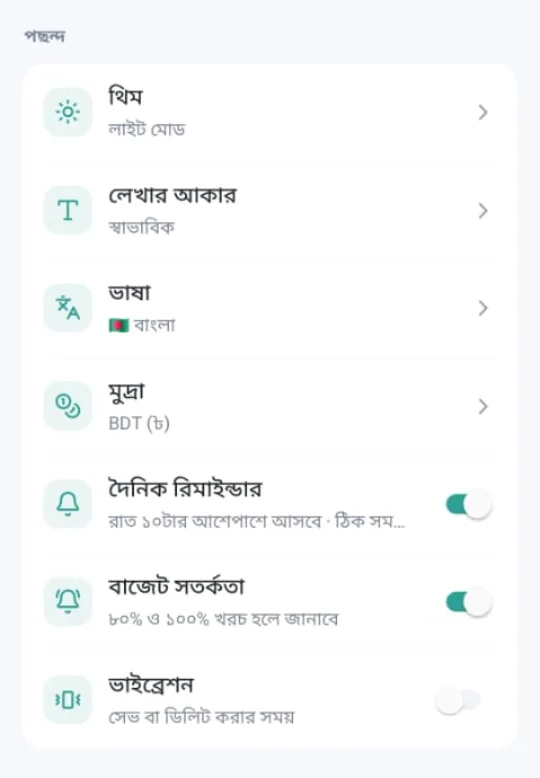
  1. Choose a theme: Light, Dark or System default to follow your phone.থিম বাছুন: Light, Dark বা ফোনের সাথে মেলাতে System default।
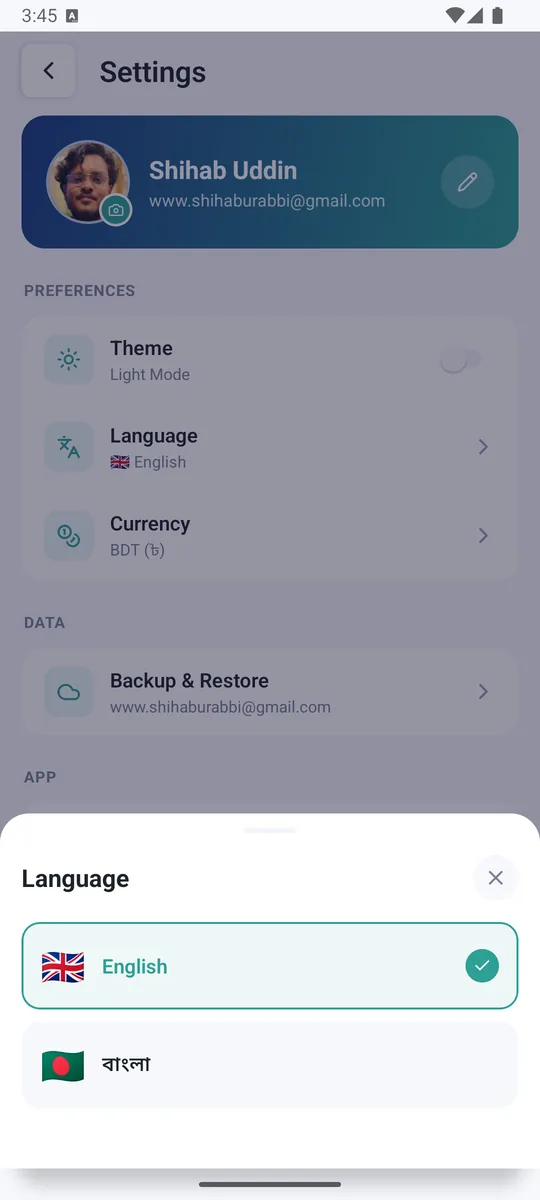
  2. Choose বাংলা or English, and your currency: BDT (৳), USD, USDT, EUR, GBP, INR, JPY or CNY.বাংলা বা English, আর কারেন্সি বাছুন: BDT (৳), USD, USDT, EUR, GBP, INR, JPY বা CNY।
  3. Set the Text size to Small, Normal or Large. The app restarts to apply it.লেখার সাইজ ছোট, সাধারণ বা বড় করুন। সাইজ বদলালে অ্যাপ নিজে রিস্টার্ট হয়।
  4. Turn Vibration, the Daily reminder and Budget alerts on or off.ভাইব্রেশন, দৈনিক রিমাইন্ডার আর বাজেট অ্যালার্ট চালু বা বন্ধ করুন।
  5. Tap your photo to change it, or the pencil to edit your name.ছবি বদলাতে ছবিতে, নাম বদলাতে পেন্সিলে চাপুন।
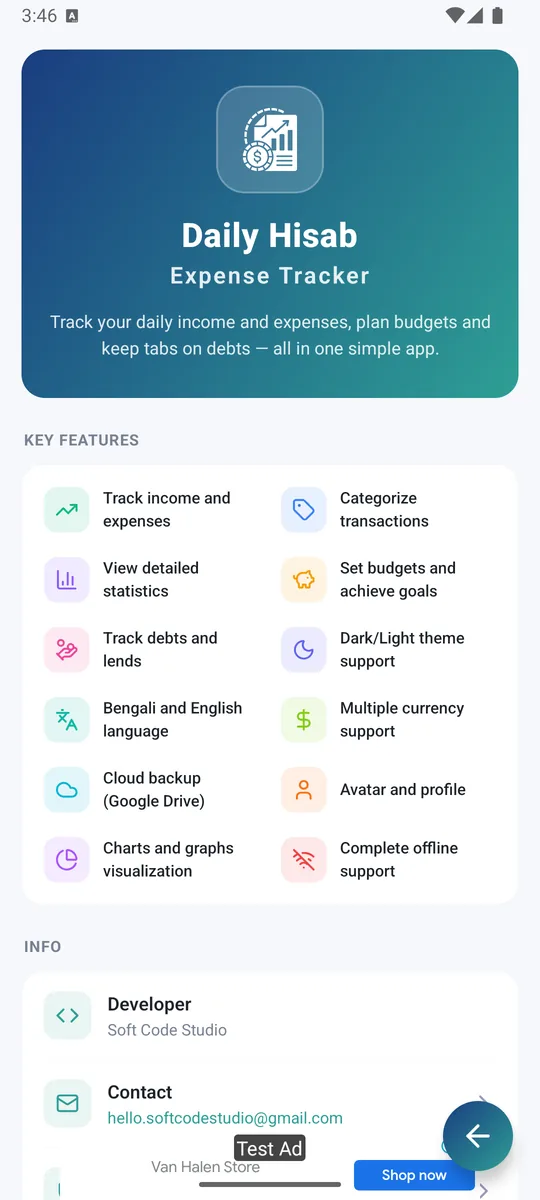
  6. Send Feedback, open About App (rate us, privacy policy), or use Check for Updates to get the latest version.Feedback পাঠান, About App এ রেটিং আর প্রাইভেসি পলিসি দেখুন, আর Check for Updates দিয়ে নতুন ভার্সন নিন।
SettingsSettings
Settings
Settings
09

🔔 Reminders & alertsরিমাইন্ডার ও অ্যালার্ট

Gentle nudges so you never miss a day, a due date or a budget limit.কোনো দিন, ধার ফেরতের তারিখ বা বাজেটের সীমা যেন মিস না হয়, তাই ছোট ছোট মনে করিয়ে দেওয়া।

  1. Daily reminder: around 10 PM every night. If you've already logged something that day, it skips tonight. Turn it on or off in Settings.দৈনিক রিমাইন্ডার: প্রতিদিন রাত ১০টার দিকে। ওই দিন হিসাব লেখা হয়ে গেলে সেদিন আর আসে না। সেটিংস থেকে চালু বা বন্ধ করুন।
  2. Debt reminders: at 10 AM on the pay-back date, telling you who to pay or who owes you.ধার-দেনার রিমাইন্ডার: ফেরতের তারিখে সকাল ১০টায় জানাবে কাকে দিতে হবে বা কার কাছে পাবেন।
  3. Budget alerts: a warning when you reach 80% of a category budget, and another when you pass 100%.বাজেট অ্যালার্ট: কোনো খাতের বাজেটের ৮০% খরচ হলে সতর্ক করে, ১০০% পার হলে আবার জানায়।
  4. Not getting notifications? Allow notifications for the app in your phone's settings.নোটিফিকেশন আসছে না? ফোনের সেটিংসে অ্যাপের নোটিফিকেশন পারমিশন চালু করুন।
Reminders and alertsReminders and alerts
10

💡 Smart insightsস্মার্ট ইনসাইট

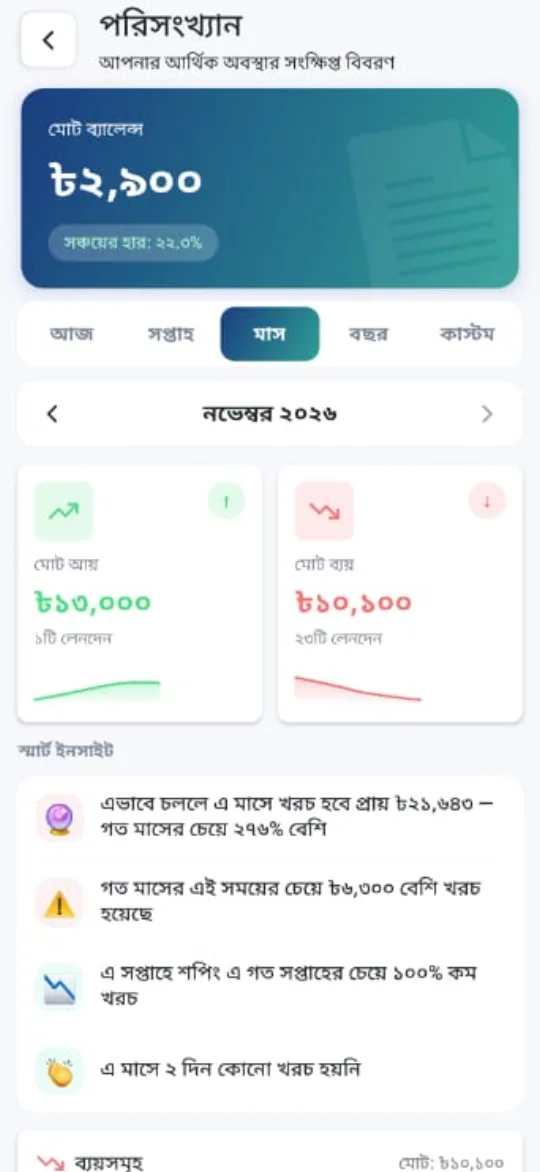
Short, useful facts about your spending, shown on the Reports page.রিপোর্ট পেজে আপনার খরচ নিয়ে ছোট ছোট কাজের তথ্য।

  1. See how this week's spending in a category compares with last week.কোনো খাতে এ সপ্তাহের খরচ গত সপ্তাহের চেয়ে কত বেশি বা কম দেখুন।
  2. Get a projection of what you'll spend this month if you keep this pace.এই গতিতে চললে মাসে আনুমানিক কত খরচ হবে সেটা জানুন।
  3. Compare this month so far with the same point last month.গত মাসের একই সময়ের সাথে এ মাসের এখন পর্যন্ত খরচ তুলনা করুন।
  4. See your no-spend days, your savings rate, and how much you spend on Fridays and Saturdays.কয়দিন খরচ হয়নি, সঞ্চয়ের হার, আর শুক্র-শনিবারে কত খরচ হয় সেটাও দেখুন।
  5. Insights appear once you have enough entries to compare.তুলনা করার মতো যথেষ্ট হিসাব জমলে ইনসাইট দেখা যায়।
Smart insightsSmart insights
11

🎨 Custom categoriesনিজের ক্যাটাগরি

Add categories that fit your life.নিজের জীবনের সাথে মেলে এমন ক্যাটাগরি বানান।

  1. While adding an entry, open the category list and tap New.লেনদেন যোগ করার সময় ক্যাটাগরি তালিকা খুলে New চাপুন।
  2. Type a name, then choose an icon and a color.নাম লিখুন, তারপর আইকন আর রং বেছে নিন।
  3. Your category appears in the list and can be used in budgets too.ক্যাটাগরিটা তালিকায় আসবে, বাজেটেও ব্যবহার করা যাবে।
  4. Long-press your own category to delete it. Past entries keep the category name.মুছতে নিজের ক্যাটাগরিতে চেপে ধরুন। আগের লেনদেনে ক্যাটাগরির নাম থেকে যাবে।
Custom categories
12

🎁 Year in reviewবছরের হিসাব

Your whole year of money, on one screen.পুরো বছরের টাকার গল্প এক স্ক্রিনে।

  1. In December and January a Year in review banner appears on Home and Reports, once you have at least a year of records.ডিসেম্বর আর জানুয়ারিতে হোম ও রিপোর্ট পেজে বছরের হিসাব ব্যানার আসে, অ্যাপে অন্তত এক বছরের হিসাব থাকলে।
  2. See total spent, income and saved, your biggest spending month, daily average and your top three categories.দেখুন মোট খরচ, আয়, সঞ্চয়, কোন মাসে সবচেয়ে বেশি খরচ, দিনে গড় খরচ আর সেরা তিন খাত।
  3. You'll also see your biggest single expense and on how many days you logged money.সবচেয়ে বড় একটা খরচ আর কতদিন হিসাব লিখেছেন সেটাও দেখবেন।
  4. Tap Share my year to share it with friends.Share my year চেপে বন্ধুদের সাথে শেয়ার করুন।
Year in review

Common questionsসাধারণ প্রশ্ন

Is my data safe?আমার ডাটা কি নিরাপদ?

Your records stay on your phone. Backups go only to your own Google Drive, encrypted. We don't run servers that store your financial data.আপনার হিসাব আপনার ফোনেই থাকে। ব্যাকআপ যায় শুধু আপনার নিজের Google Drive এ, এনক্রিপ্ট হয়ে। আমাদের কোনো সার্ভারে আপনার আর্থিক ডাটা রাখা হয় না।

Do I need the internet?ইন্টারনেট কি লাগবে?

No. The app works fully offline. Internet is only needed for Google Drive backup.না। অ্যাপ পুরোপুরি অফলাইনে চলে। শুধু Google Drive ব্যাকআপের জন্য ইন্টারনেট লাগে।

Is the app free? Does it show ads?অ্যাপটা কি ফ্রি? বিজ্ঞাপন আছে?

The app is free and shows ads. Pop-up ads are not shown while you are adding an entry or creating a budget.অ্যাপটা ফ্রি এবং এতে বিজ্ঞাপন দেখানো হয়। তবে হিসাব যোগ বা বাজেট বানানোর সময় পপআপ বিজ্ঞাপন আসে না।

How do I move my data to a new phone?নতুন ফোনে ডাটা কীভাবে নেব?

Back up on the old phone, install Daily Hisab on the new one, connect the same Gmail and tap Restore Backup.পুরনো ফোনে ব্যাকআপ নিন, নতুন ফোনে দৈনিক হিসাব ইনস্টল করে একই Gmail যুক্ত করুন আর ব্যাকআপ পুনরুদ্ধার চাপুন।

What happens if I uninstall the app?অ্যাপ আনইনস্টল করলে কী হবে?

Data on the phone is removed. Your Google Drive backups stay, so you can restore them later.ফোনের ডাটা মুছে যায়। Google Drive এর ব্যাকআপ থেকে যায়, পরে রিস্টোর করতে পারবেন।

Why is my reminder late or missing?রিমাইন্ডার দেরিতে আসছে বা আসছে না কেন?

Make sure notifications are allowed for the app. In Settings, tap the exact-time hint under Daily reminder to allow on-time delivery, and exclude the app from battery optimization. The reminder is skipped on days you have already logged an entry.অ্যাপের নোটিফিকেশন পারমিশন চালু আছে কি না দেখুন। সেটিংসে দৈনিক রিমাইন্ডারের নিচের ঠিক সময়ের লেখায় চেপে অনুমতি দিন, আর ব্যাটারি অপটিমাইজেশন থেকে অ্যাপটা বাদ রাখুন। ওই দিন হিসাব লেখা হয়ে গেলে রিমাইন্ডার আসে না।

Which currencies are supported?কোন কারেন্সি ব্যবহার করা যায়?

BDT (৳), USD, USDT, EUR, GBP, INR, JPY and CNY. Change it in Settings → Currency.BDT (৳), USD, USDT, EUR, GBP, INR, JPY ও CNY। সেটিংস → Currency থেকে বদলান।

Will my old backup be lost?আমার আগের ব্যাকআপ কি মুছে যাবে?

No. The last 3 backups are kept, so you can go back.না। শেষ ৩টা ব্যাকআপ রাখা হয়, চাইলে আগেরটায় ফিরতে পারবেন।

Get it on Google PlayGoogle Play থেকে ডাউনলোড করুন